Touch Screen Test: Find Dead Spots and Ghost Touches
A dead spot the size of a coin can make a phone unusable — the spacebar stops working, the fire button drops inputs, a corner of the keyboard goes silent. Here is how to test a touchscreen properly, read what each failure pattern means, and tell a dying digitizer apart from a $5 charger.
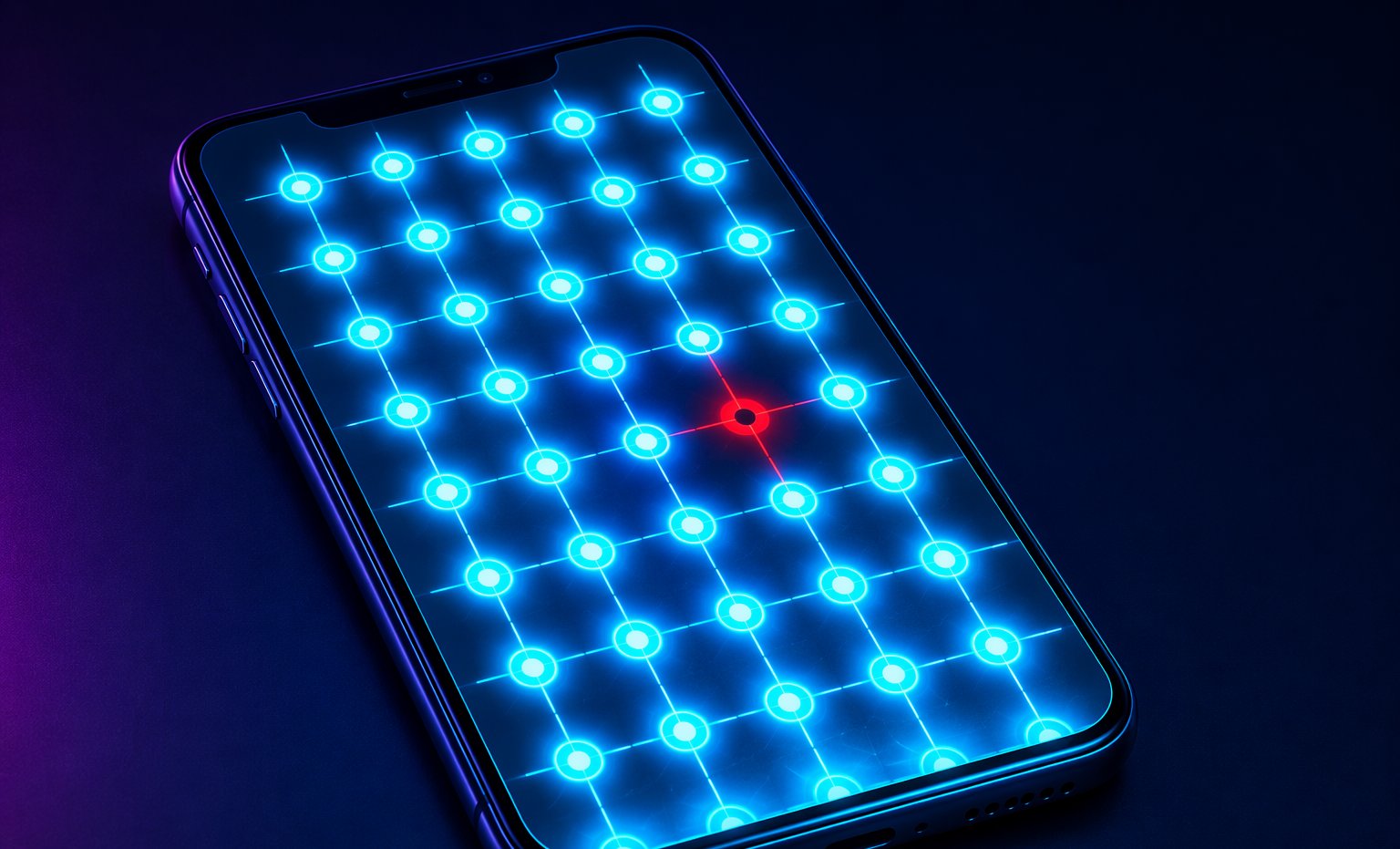
How a capacitive touchscreen actually works
Under the glass sits a nearly invisible grid of electrodes — rows and columns of transparent conductors etched into a film. Your finger is conductive, and when it gets close to an intersection, it changes the electrical capacitance at that node. A controller chip scans the whole grid hundreds of times per second, finds the nodes that changed, and reports coordinates to the phone.
That is everything: no pressure needed, just a change in capacitance. It is why gloves mostly do not work (leather insulates; touchscreen gloves weave in conductive thread) and why a drop of water can register as a finger. Every dead spot and ghost touch is this system missing a real change or inventing one.
How to map dead zones systematically
Guessing is how dead spots survive for months. The fix is a coverage grid: open our touch screen test, which draws live contact markers, gesture trails and a grid that records every region of the screen that has received a touch.
- Drag one finger slowly across the screen in overlapping horizontal stripes, like mowing a lawn. Watch the grid fill in.
- Repeat with slow diagonal sweeps in both directions — dead digitizer rows and columns show up instantly as untouched lines.
- Do a dedicated pass around all four edges and corners, where protector adhesive and drop damage concentrate.
- Press with your normal grip and pressure. Do not press harder to force a response; that masks the fault you are hunting.
- Any square that stays empty after two honest passes is a candidate dead zone. Re-test it in fullscreen to rule out browser chrome swallowing the gesture.
One caveat: phones reserve some edge swipes for the OS — Back, Home, notification shade. A strip at the very edge that ignores the browser is often the operating system, not broken hardware. Test slightly inside the edge to tell the difference.
What causes dead spots
The pattern of the dead zone points at the culprit:
| Symptom | Likely cause | Verdict |
|---|---|---|
| Perfect dead row or column | Digitizer trace damage, often after a drop | Hardware — screen replacement |
| Coin-sized blob that never responds | Local digitizer damage or lamination fault | Hardware |
| Dead only around the edges | Thick screen protector or case pressing the glass | Remove and retest — usually fixable |
| Dead only with wet or sweaty hands | Moisture confusing the capacitive scan | Normal physics — dry and retest |
| Dead in one app, fine elsewhere | Software bug or that app's UI layer | Not the screen |
| Intermittent, worse over time | Loose display connector after a repair | Hardware — reseat or repair |
The classic case: the phone hits the floor, the glass survives — but the digitizer underneath cracked, and a dead row appears a week later. Glass condition says almost nothing about touch health. The grid does.
While you are inspecting the panel, it is worth two minutes with the dead pixel test and a glance at our dead vs stuck pixel guide — drop damage often takes pixels and touch out together.
Ghost touches and the famous cheap-charger effect
Ghost touch is the opposite failure: the screen registers fingers that do not exist. Apps open themselves, the keyboard types gibberish, the map zooms on its own. It feels like possession. It is usually electricity.
The most famous cause is the cheap-charger effect. Bargain chargers with poor isolation leak electrical noise into the phone's power line, and that noise couples into the capacitive grid. The controller sees phantom capacitance changes and reports phantom touches. The tell is perfect: ghosts appear while charging and vanish the second you unplug. The fix is a better charger or power bank — not a new screen.
The other usual suspects: cracked glass creating pressure points on the digitizer, a swollen battery pushing the display from behind, moisture under a screen protector, and grounding issues when using the phone while plugged into certain laptops or car ports. If ghosts appear with a cracked screen, the ghosts are the least of your problems — that digitizer is on borrowed time.
Multi-touch capacity: the mobile gamer's hidden spec
Every touchscreen has a maximum number of simultaneous contact points it can track, and almost nobody checks it. Five points sounds generous until you play a shooter with a claw grip: two thumbs on sticks, one index finger on fire, another on aim — and a fifth contact for crouch. A phone that caps at 5 points will drop or jitter inputs exactly when the fight gets busy.
Gaming phones in 2026 commonly track 10 simultaneous points, which is why claw-grip PUBG Mobile and Call of Duty Mobile players obsess over them. The touch screen test counts your device's live simultaneous contacts — put down fingers one at a time and watch where the count stops climbing. That number is your real multi-touch ceiling, whatever the spec sheet says.
Also test the combinations you actually use. Some digitizers track 10 fingers but distort coordinates when three cluster in one corner — exactly where claw grips live.
Touch sampling rate vs display refresh rate
These two specs sound identical and are completely different. Display refresh rate is how often the screen updates the picture — 120Hz on most decent phones in 2026. Touch sampling rate is how often the digitizer scans for your finger — and on gaming phones it runs much faster: 240Hz, 480Hz, with some models advertising 720Hz or more.
Why sample touch faster than you draw? Latency. If the display refreshes every 8.3ms but the touch controller only scans every 16.7ms, your tap can wait an entire extra frame before the phone even knows it happened. A 480Hz touch rate checks every 2.1ms, so input is captured almost the instant your finger lands, then shown on the very next frame.
This is why two phones with identical 120Hz screens can feel completely different in a rhythm game or shooter. The display spec is what you see; the sampling spec is what you feel.
Software bug or dying hardware?
Before paying for a screen replacement, spend five minutes on triage:
- Reproduce it in a second app. A dead zone that exists in the browser test and in your notes app is hardware. A dead zone that only exists in one game is that game's problem.
- Restart the phone. Touch controller firmware crashes more often than people think. If a reboot fixes it, it was software.
- Remove the protector and case. Thirty seconds of work, and it eliminates the most common fixable cause.
- Test with the charger unplugged. If ghosts or jitter disappear, buy a better charger, not a screen.
- Update the OS. Manufacturers ship touch firmware fixes inside system updates surprisingly often.
If the same dead row or column survives all five steps, the digitizer is physically damaged. No setting resurrects it — the fix is a display assembly replacement. The good news: you now have a documented, reproducible fault map, which makes warranty claims and repair quotes dramatically easier. Screenshot the coverage grid before you hand the phone over.
The bottom line
Touchscreens fail in only two ways: they miss real touches or they invent fake ones. A fixed dead row or blob that reproduces across apps means digitizer damage; phantom touches while charging mean a noisy charger; edge-only failures usually mean a protector or an OS gesture. Map the fault on the coverage grid, run the five-minute triage, and you will know whether you need a new charger, a peeled-off protector or a new display — before you spend a cent.
Ready to check your own gear?
Touch Screen TestFrequently asked questions
How do I test my phone's touch screen?
Open the touch screen test in your phone's browser and drag one finger slowly across the entire screen in overlapping passes. The coverage grid records every area that responds. Any region that stays blank after two careful passes is a candidate dead zone — confirm it in a second app before blaming the hardware.
What causes ghost touch on a phone?
The classic cause is electrical noise from a cheap or damaged charger injecting phantom touches into the capacitive grid — if ghosts stop when you unplug, that is your answer. Other causes: cracked glass pressing on the digitizer, moisture under a screen protector, a swollen battery pushing the display from inside, and grounding issues while plugged into a laptop or car.
Why is my touch screen not working in one spot?
A fixed dead spot usually means physical digitizer damage — often from a drop, even when the glass looks fine. If the dead area is a perfect row or column, a digitizer trace is broken and the fix is a screen replacement. If it is edge-only, remove the screen protector and retest first.
Can a screen protector cause touch problems?
Yes. Thick tempered glass, poor adhesive at the edges, and cases that press on the protector can all create dead zones or erratic touches, especially near the borders. If problems started the day you applied a protector, peel it off and run the test again before assuming the screen is dying.
What is touch sampling rate and does it matter for gaming?
Touch sampling rate is how often the digitizer scans for your finger — 240-720Hz on 2026 gaming phones, versus the 120Hz the display refreshes at. Higher sampling means your tap is registered within a couple of milliseconds instead of waiting up to a full frame. In shooters and rhythm games, that difference is directly feelable.